Modernizing Taichi Lang to LLVM 20 for MI355X GPU Acceleration#

Our first Taichi Lang blog intrduced you to Taichi Lang on AMD’s MI210 and MI250X GPUs. This previous version of Taichi was limited by it’s dependence on outdated versions of LLVM. We have modernized Taichi to LLVM 20 to take advantage of the latest advances in LLVM’s code generation capabilities. This modernization also allows us to make Taichi available for execution on newer AMD Instinct GPUs, MI300X, MI325X and MI355X. As with our previous blog, we provide you with a guide for understanding Taichi, and walk you through installing Taichi, as well as, writing and executing a Taichi program.
ROCm Taichi#
Getting Started with Taichi#
When writing compute-intensive tasks, users can make use of the two decorators @ti.func and @ti.kernel.
Functions decorated with @ti.kernel are kernels that serve as the entry points where Taichi’s runtime takes over the tasks,
and they must be directly invoked by Python code. Functions decorated with @ti.func are building blocks of kernels and can only be
invoked by another Taichi function or a kernel. These decorators instruct Taichi to take over the computation tasks and
compile the decorated functions to machine code using the JIT compiler.
As a result, calls to these functions are executed on multi-core CPUs or GPUs.
Below we show how simple it is to use the Taichi @ti.func and @ti.kernel decorators to accelerate Python code. First, we show the Python code without using Taichi. In this example, we have the function inv_square which acts as a building block function for the kernel partial_sum.
Example without Taichi:
def inv_square(x):  # A function
    return 1.0 / (x * x)

def partial_sum(n: int) -> float:  # A kernel
    total = 0.0
    for i in range(1, n + 1):
        total += inv_square(i)
    return total

partial_sum(1000)
To write this code with Taichi, we simply import and initialize Taichi for acceleration:
import taichi as ti
ti.init(arch=ti.gpu)
and decorate the building block function and kernel with the @ti.func and @ti.kernel decorators, respectively:
@ti.func
def inv_square(x):  # A Taichi function
    return 1.0 / (x * x)

@ti.kernel
def partial_sum(n: int) -> float:  # A kernel
    total = 0.0
    for i in range(1, n + 1):
        total += inv_square(i)
    return total
Docker Environments for Taichi Lang on AMD GPUs#
Use a Prebuilt Docker Image with Taichi Pre-Installed#
To simplify running Taichi programs on AMD GPUs, we recommend using the pre-built Docker image. To do this, pull the docker image:
docker pull rocm/taichi:taichi-1.8.0b2_rocm7.0.0_ubuntu24.04_py3.12.3
and launch the docker container:
docker run -it --privileged --network=host --device=/dev/kfd --device=/dev/dri --group-add video --cap-add=SYS_PTRACE --security-opt seccomp=unconfined --ipc=host --name taichi_lang rocm/taichi:taichi-1.8.0b2_rocm7.0.0_ubuntu24.04_py3.12.3 bash
Build Your Own Docker Image#
You can also install Taichi in an existing docker image with ROCm 7.0. To do this, copy the instructions below into a Dockerfile:
FROM rocm/dev-ubuntu-24.04:7.0-complete

ARG LLVM_VERSION=20
ARG GPU_TARGETS=gfx90a,gfx940,gfx941,gfx942,gfx950
ARG ROCM_VERSION=7.0.0

ENV LLVM_PATH=/usr/lib/llvm-${LLVM_VERSION}/
ENV ROCM_PATH=/opt/rocm-${ROCM_VERSION}
ENV PATH=${LLVM_PATH}/bin:$PATH

ENV TAICHI_CMAKE_ARGS="-DTI_WITH_VULKAN=OFF -DTI_WITH_OPENGL=OFF -DTI_BUILD_TESTS=OFF -DTI_BUILD_EXAMPLES=OFF -DCMAKE_PREFIX_PATH=${LLVM_PATH}/lib/cmake -DCMAKE_CXX_COMPILER=${LLVM_PATH}/bin/clang++ -DTI_WITH_AMDGPU=ON -DTI_WITH_CUDA=OFF -DTI_AMDGPU_ARCHS=${GPU_TARGETS} -DUSE_LLD=ON -DTI_WITH_LLVM=ON"


RUN apt-get update && apt-get install -y --no-install-recommends \
        git wget vim git freeglut3-dev libglfw3-dev libglm-dev \
        libglu1-mesa-dev libjpeg-dev liblz4-dev libpng-dev \
        libssl-dev libwayland-dev libx11-xcb-dev libxcb-dri3-dev \
        libxcb-ewmh-dev libxcb-keysyms1-dev libxcb-randr0-dev \
        libxcursor-dev libxi-dev libxinerama-dev libxrandr-dev \
        libzstd-dev python3-pip cmake pybind11-dev \
        ca-certificates python3-venv rocm-llvm-dev \
        gdb python3-dbg

WORKDIR /app

RUN wget https://apt.llvm.org/llvm.sh \
        && chmod +x llvm.sh \
        && apt-get update && apt-get install -y \
        lsb-release software-properties-common gnupg \
        && ./llvm.sh ${LLVM_VERSION} llvm clang lld

RUN git clone --recursive -b amd-integration https://github.com/ROCm/taichi.git \
        && cd  taichi/external/spdlog \
        && git apply /app/taichi/spdlog_fmt.patch \
        && cd /app/taichi \
        && ./build.py \
        && python3 -m pip config set global.break-system-packages true \
        && python3 -m pip install /app/taichi/dist/taichi*.whl
Build the docker container with the following command:
docker build -t taichi-lang-dev .
Launch the docker container using the following docker run command:
docker run -it --privileged --network=host --device=/dev/kfd --device=/dev/dri --group-add video --cap-add=SYS_PTRACE --security-opt seccomp=unconfined --ipc=host --name taichi_lang taichi-lang-dev bash
If the docker container terminal does not launch automatically run the following docker attach command:
docker attach taichi_lang
Taichi Lang Examples#
We have curated a variety of examples to demonstrate the use of Taichi Lang on AMD Instinct GPUs. One such example is the “count primes” program. In this example we have the function is_prime which will be used in the kernel count_primes. In the code below, we write this example as a Taichi program by decorating is_prime with the Taichi decorator @ti.func and decorating count_primes with the Taichi decorator @ti.kernel. To run this example, copy the code below to a file named count_primes.py:
import taichi as ti
ti.init(arch=ti.gpu)

@ti.func
def is_prime(n: int):
    result = True
    for k in range(2, int(n ** 0.5) + 1):
        if n % k == 0:
            result = False
            break
    return result

@ti.kernel
def count_primes(n: int) -> int:
    count = 0
    for k in range(2, n):
        if is_prime(k):
            count += 1

    return count

print(count_primes(1000000))
Once this file has been created, execute the code in your Docker container with the following command:
python3 count_primes.py
The output should be similar to the output below:
[Taichi] version 1.8.0, llvm 20.1.8, commit ed1c61d5, linux, python 3.12.3
[Taichi] Starting on arch=amdgpu
78498
Another example is a longest common subsequence kernel. In this example we do not need a helper function, so the only decorator we use is @ti.kernel to accelerate the kernel function compute_lcs. To run this example, copy the code below into a file named lcs.py:
import taichi as ti
import numpy as np

ti.init(arch=ti.gpu)

benchmark = True

N = 15000

f = ti.field(dtype=ti.i32, shape=(N + 1, N + 1))

if benchmark:
    a_numpy = np.random.randint(0, 100, N, dtype=np.int32)
    b_numpy = np.random.randint(0, 100, N, dtype=np.int32)
else:
    a_numpy = np.array([0, 1, 0, 2, 4, 3, 1, 2, 1], dtype=np.int32)
    b_numpy = np.array([4, 0, 1, 4, 5, 3, 1, 2], dtype=np.int32)

@ti.kernel
def compute_lcs(a: ti.types.ndarray(), b: ti.types.ndarray()) -> ti.i32:
    len_a, len_b = a.shape[0], b.shape[0]

    ti.loop_config(serialize=True) # Disable auto-parallelism in Taichi
    for i in range(1, len_a + 1):
        for j in range(1, len_b + 1):
               f[i, j] = ti.max(f[i - 1, j - 1] + (a[i - 1] == b[j - 1]),
                          ti.max(f[i - 1, j], f[i, j - 1]))

    return f[len_a, len_b]


print(compute_lcs(a_numpy, b_numpy))
Once this file has been created, execute the code in your Docker container with the following command:
python3 lcs.py
The output should be similar to the output below:
[Taichi] version 1.8.0, llvm 20.1.8, commit ed1c61d5, linux, python 3.12.3
[Taichi] Starting on arch=amdgpu
2706
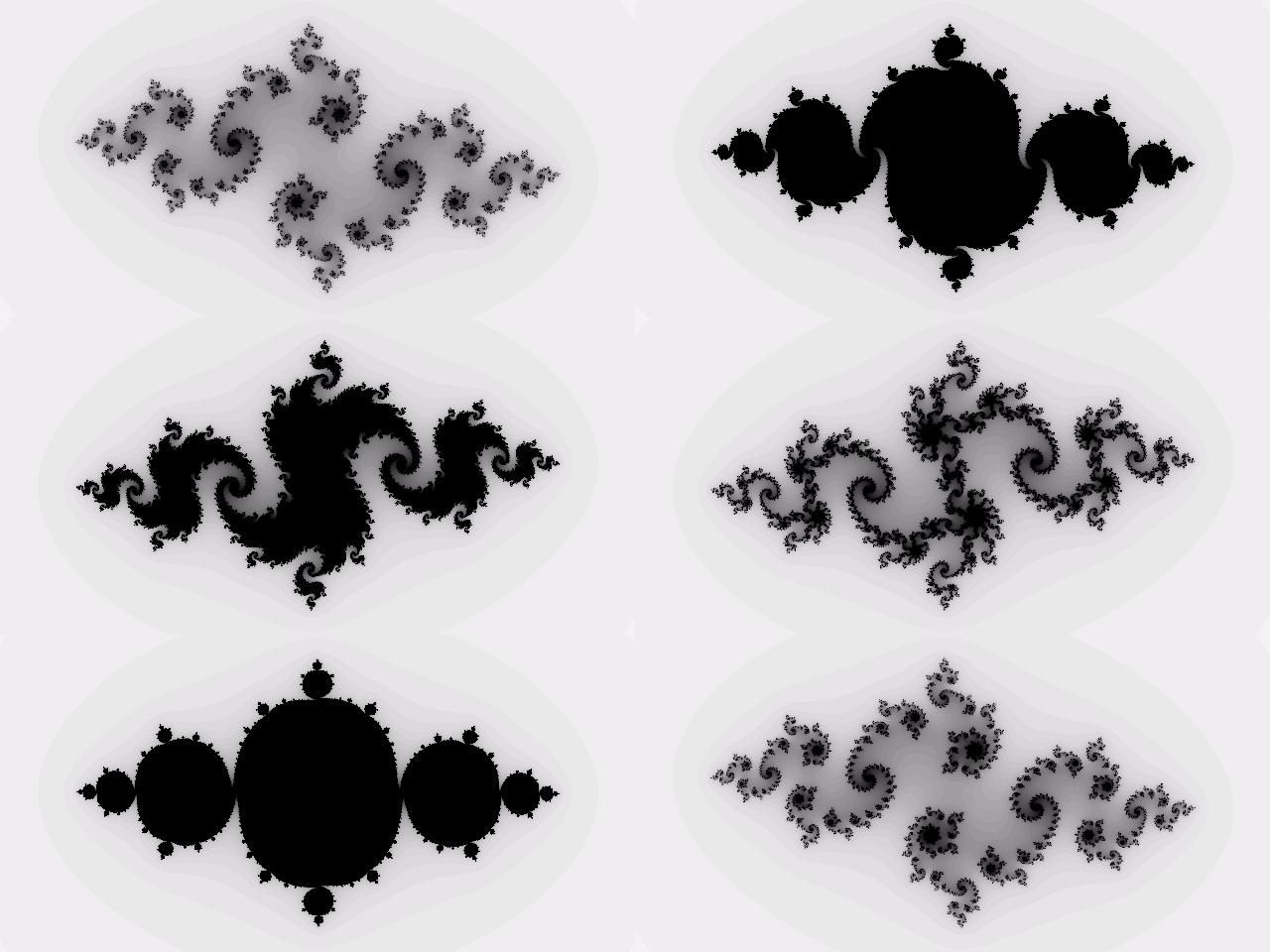
To demonstrate more of Taichi’s simulation capabilites with graphics, we present a fractal example. This example demonstrates how to iteratively save images and video using Taichi’s Video Manager Tool: To run this, save the code below into a file named fractal.py:
import taichi as ti
import taichi.math as tm

ti.init(arch=ti.gpu)

n = 320
pixels = ti.field(dtype=float, shape=(n * 2, n))

@ti.func
def complex_sqr(z):  # complex square of a 2D vector
    return tm.vec2(z[0] * z[0] - z[1] * z[1], 2 * z[0] * z[1])

@ti.kernel
def paint(t: float):
    for i, j in pixels:  # Parallelized over all pixels
        c = tm.vec2(-0.8, tm.cos(t) * 0.2)
        z = tm.vec2(i / n - 1, j / n - 0.5) * 2
        iterations = 0
        while z.norm() < 20 and iterations < 50:
            z = complex_sqr(z) + c
            iterations += 1
        pixels[i, j] = 1 - iterations * 0.02

result_dir = "./taichi_fractal_results"
video_manager = ti.tools.VideoManager(output_dir=result_dir, framerate=24, automatic_build=False)

frames = 200

i = 0
for f in range(frames):
    paint(i * 0.03)

    pixels_img = pixels.to_numpy()
    video_manager.write_frame(pixels_img)
    i += 1

video_manager.make_video(gif=True, mp4=True)
Once this file has been created, you must also install ffmpeg, as it is a dependency for Taichi’s VideoManager:
sudo apt update
sudo apt install ffmpeg
Once this dependency has been installed, execute the code in your Docker container with the following command:
python3 fractal.py
Once execution of fractal.py has completed, a directory named taichi_fractal_results should have been created. This directory should contain an mp4 video file named video.mp4, a gif video file named video.gif and a directory named ‘frames’ that contains the 200 png files created during the execution.
The two video files, video.mp4 and video.gif, are identical animations. When you open either video file, the animation should display this fractal:
To further demonstrate Taichi’s graphics simulation capabilities, we introduce a ray trace implementation based on the tutorial Ray Tracing in One Weekend. The instructions below show how to download and run the Taichi implementation of Ray Tracing in One Weekend:
First, clone the git repo containing the Taichi source code:
git clone https://github.com/bsavery/ray-tracing-one-weekend-taichi.git
Next, cd to the source repo and run the ray trace script:
cd ray-tracing-one-weekend-taichi
python3 main.py
The output should be similar to this:
[Taichi] version 1.8.0, llvm 20.1.8, commit 104dc18b, linux, python 3.12.3
[Taichi] Starting on arch=amdgpu
starting big wavefront
76.01607370376587
Your code will have also generated a png file named out.png. The picture in this file should look like the picture below:

Summary#
Taichi Lang has been modernized to LLVM 20 for use on AMD’s MI300X, MI325X and MI355X GPUs, an anticipated update from previous versions of Taichi. The provided step-by-step guide should enable users to install Taichi Lang in a ROCm 7.0 docker environment, and run Taichi Lang programs with features enabled for AMD MI210, MI250X, MI300X, MI325x and MI355X GPUs.
AMD continues to enhance Taichi support through ongoing development on its latest ROCm software and AMD Instinct GPU products. Keep an eye out for updates and new blogs as we share our progress.
Acknowledgements#
The authors wish to acknowledge the AMD teams that supported this work, whose contributions were instrumental in enabling Taichi Lang: Tiffany Mintz, Deepan Sekar, Debasis Mandal, Yao Liu, Phani Vaddadi, Vish Vadlamani, Ritesh Hiremath, Bhavesh Lad, Radha Srimanthula, Anisha Sankar, Amit Kumar, Ram Seenivasan, Kiran Thumma, Aakash Sudhanwa, Aditya Bhattacharji
Disclaimers#
Third-party content is licensed to you directly by the third party that owns the content and is not licensed to you by AMD. ALL LINKED THIRD-PARTY CONTENT IS PROVIDED “AS IS” WITHOUT A WARRANTY OF ANY KIND. USE OF SUCH THIRD-PARTY CONTENT IS DONE AT YOUR SOLE DISCRETION AND UNDER NO CIRCUMSTANCES WILL AMD BE LIABLE TO YOU FOR ANY THIRD-PARTY CONTENT. YOU ASSUME ALL RISK AND ARE SOLELY RESPONSIBLE FOR ANY DAMAGES THAT MAY ARISE FROM YOUR USE OF THIRD-PARTY CONTENT.