Getting Started with ComfyUI on AMD Radeon™ RX 9000 Series GPUs#

ComfyUI has become a widely adopted and versatile node-based interface for Stable Diffusion and other generative AI models, gaining significant traction within the AI content creation community. Unlike traditional web-based interfaces, ComfyUI provides a node-based workflow system that gives users complete control over their image and video generation pipelines. Its modular architecture allows for complex workflows involving multiple models, LoRAs, ControlNets, and custom processing steps.
The challenge: Many AMD GPU users have encountered stability issues when running ComfyUI, including HIP memory errors, slow first-time generation, and VAE decoding failures. These issues can be frustrating for users transitioning from NVIDIA hardware or setting up their first AI generation workflow.
With the release of AMD Radeon RX 9000 series GPUs based on the RDNA 4 architecture, along with continued improvements in the AMD ROCm™ software stack, AMD users can now leverage ComfyUI for AI generation workflows. In this blog, we will discuss how to set up ComfyUI on AMD Radeon hardware, address the most common issues encountered by the community, and share performance optimization strategies based on our hands-on testing.
Note
This blog focuses on native Linux setups with AMD Radeon consumer GPUs. If you are interested in running ComfyUI on AMD Instinct data center GPUs, see Running ComfyUI on AMD Instinct. For a Windows-based setup using WSL, see Running ComfyUI in Windows with ROCm on WSL.
Why ComfyUI?#
ComfyUI offers several advantages for AI content creators:
Visual Workflow Editor: Design complex generation pipelines through an intuitive node-based interface
Memory Efficiency: Advanced model management that enables running large models on consumer hardware
Extensibility: Rich ecosystem of custom nodes and community extensions
Reproducibility: Save and share workflows as JSON files for consistent results
Multi-Model Support: Native support for Stable Diffusion, SDXL, Flux, WAN video models, and more
As shown in Figure 1 below, ComfyUI’s template browser makes it easy to get started with a variety of generation tasks.
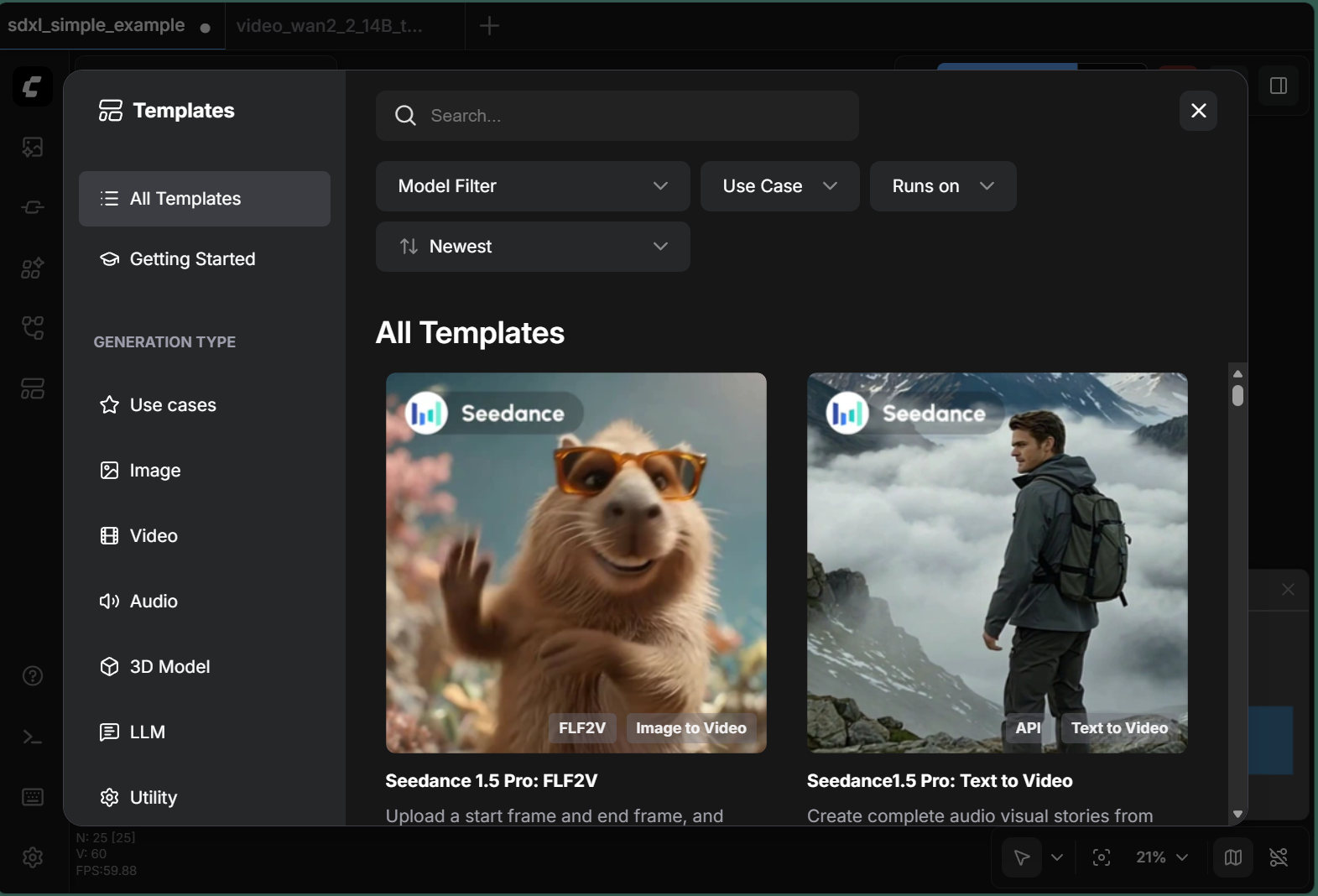 Figure 1: ComfyUI’s built-in template browser provides ready-to-use workflows for various generation types including Image, Video, Audio, 3D Model, and LLM applications.
System Requirements#
Hardware Requirements#
Component |
Minimum |
Recommended |
|---|---|---|
GPU |
AMD Radeon RX 7000 Series (RDNA3) |
AMD Radeon RX 9000 Series (RDNA4) |
VRAM |
8GB |
16GB+ |
System RAM |
16GB |
32GB+ |
Storage |
50GB free space |
SSD with 100GB+ free space |
Software Requirements#
Component |
Version |
|---|---|
Operating System |
Ubuntu 22.04 LTS or Ubuntu 24.04 LTS |
ROCm |
7.1 |
Python |
3.10 - 3.12 |
PyTorch |
2.6.0+ with ROCm support |
Supported GPU Models#
The following AMD Radeon GPUs have been tested with this configuration:
AMD Radeon RX 9070 XT (RDNA4)
AMD Radeon RX 9070 (RDNA4)
AMD Radeon RX 7900 XTX (RDNA3)
AMD Radeon RX 7900 XT (RDNA3)
AMD Radeon RX 7900 GRE (RDNA3)
Installation Guide#
Option 1: Docker Installation (Recommended)#
Docker provides an isolated environment with pre-configured ROCm support, eliminating many common installation issues.
Pull the ROCm PyTorch image:
docker pull rocm/pytorch:rocm7.1_ubuntu24.04_py3.12_pytorch_release_2.6.0
Launch the container:
WORKSPACE_DIR="$HOME/comfyui_workspace"
mkdir -p $WORKSPACE_DIR

docker run -it \
  --name comfyui-rocm \
  --device=/dev/kfd \
  --device=/dev/dri \
  --group-add video \
  --group-add render \
  --ipc=host \
  --network=host \
  -v $WORKSPACE_DIR:/workspace \
  -w /workspace \
  rocm/pytorch:rocm7.1_ubuntu24.04_py3.12_pytorch_release_2.6.0 \
  /bin/bash
Install ComfyUI inside the container:
cd /workspace
git clone https://github.com/comfyanonymous/ComfyUI.git
cd ComfyUI
pip install -r requirements.txt
Launch ComfyUI:
python main.py --listen 0.0.0.0
Access the web interface at http://localhost:8188.
Option 2: Native Installation#
For users who prefer a native installation without Docker:
Install ROCm by following the official ROCm installation guide for your distribution: https://rocm.docs.amd.com/projects/install-on-linux/en/latest/
Create a Python environment:
python3 -m venv comfyui_env
source comfyui_env/bin/activate
Install PyTorch with ROCm support:
pip install torch torchvision --index-url https://download.pytorch.org/whl/rocm7.1
Clone and install ComfyUI:
git clone https://github.com/comfyanonymous/ComfyUI.git
cd ComfyUI
pip install -r requirements.txt
python main.py --listen 0.0.0.0
Common Issues and Solutions on AMD Radeon#
This section addresses the most frequently encountered issues when running ComfyUI on AMD Radeon GPUs, based on community feedback and our extensive testing.
Issue 1: Out of Memory (OOM) Errors#
Symptoms:
“CUDA out of memory” or “HIP out of memory” errors during generation
Process crashes during model loading or VAE decoding
Errors appear more frequently with larger models (SDXL, Flux, WAN 2.2)
Root Cause: AMD GPUs require careful VRAM management. Unlike NVIDIA GPUs, the memory allocation behavior can differ, and some operations may require more headroom.
Solutions:
Reserve VRAM for system operations by launching ComfyUI with the
--reserve-vramflag:python main.py --listen 0.0.0.0 --reserve-vram 3
This reserves 3GB of VRAM for system operations and PyTorch overhead, preventing allocation failures.
Enable low VRAM mode for GPUs with 8-12GB VRAM:
python main.py --listen 0.0.0.0 --lowvram
Disable smart memory management if you experience inconsistent memory behavior:
python main.py --listen 0.0.0.0 --disable-smart-memory
Issue 2: Slow First Generation (MIOpen Compilation)#
Symptoms:
First image generation takes significantly longer than subsequent generations
Terminal shows compilation messages during initial run
Performance improves dramatically after the first generation
Root Cause: MIOpen (the AMD equivalent to cuDNN) compiles optimized kernels for your specific GPU on first use. This compilation is cached for future runs.
Expected Behavior:
Generation |
Time (SDXL 1024x1024, 20 steps) |
|---|---|
First run |
~9 seconds |
Subsequent runs |
~5 seconds |
Solutions:
Be patient: The first run includes one-time optimization. Subsequent runs will be faster.
Preserve MIOpen cache by ensuring the cache directory persists between sessions:
export MIOPEN_USER_DB_PATH=$HOME/.cache/miopen
Issue 3: VAE Decoding Failures#
Symptoms:
Errors during the final VAE decode step
“Ran out of memory when regular VAE decoding, retrying with tiled VAE decoding” warning
Black or corrupted output images
Root Cause: VAE decoding requires significant contiguous VRAM. When VRAM is fragmented or nearly full, the standard decode may fail.
Solutions:
Use tiled VAE nodes: ComfyUI automatically falls back to tiled VAE when memory is insufficient. This is normal behavior and produces identical results.
Force CPU VAE as a last resort:
python main.py --listen 0.0.0.0 --cpu-vae
Note: This significantly slows VAE operations but ensures completion.
Use FP32 VAE for precision issues:
python main.py --listen 0.0.0.0 --fp32-vae
Issue 4: HIP Illegal Memory Access Errors#
Symptoms:
“HIP error: an illegal memory access was encountered”
Random crashes after several successful generations
More frequent with continuous batch processing
Root Cause:
This issue has been addressed in recent ComfyUI versions through automatic backend optimization. The latest ComfyUI automatically sets torch.backends.cudnn.enabled = False for AMD GPUs, which significantly improves stability.
Solutions:
Update ComfyUI to the latest version:
cd ComfyUI
git pull
pip install -r requirements.txt
Verify automatic optimization by checking your terminal output for:
Set: torch.backends.cudnn.enabled = False for better AMD performance.
If you see this message, the optimization is active.
For older versions, manually disable cuDNN by creating a startup script:
import torch
torch.backends.cudnn.enabled = False
Issue 5: Multiple GPU Configuration#
Symptoms:
ComfyUI uses the wrong GPU
Multi-GPU systems not utilizing all cards
Solutions:
Specify GPU device:
HIP_VISIBLE_DEVICES=0 python main.py --listen 0.0.0.0
For multi-GPU workflows: ComfyUI primarily uses a single GPU. For parallel workflows, consider running multiple ComfyUI instances on different ports.
Recommended Launch Configurations#
Based on our testing, we recommend the following configurations:
For 16GB VRAM GPUs (RX 9070 XT, RX 7900 XTX)#
python main.py --listen 0.0.0.0 --reserve-vram 3
For 12GB VRAM GPUs#
python main.py --listen 0.0.0.0 --reserve-vram 2 --lowvram
For Maximum Stability#
python main.py --listen 0.0.0.0 --reserve-vram 3 --disable-smart-memory
Environment Variables for Optimization#
export PYTORCH_HIP_ALLOC_CONF=expandable_segments:True
export HSA_ENABLE_SDMA=0
Performance Benchmarks#
The following benchmarks were conducted on an AMD Radeon AI PRO R9700 (32GB VRAM) with ROCm 7.1:
Note: Performance may vary based on VRAM capacity. Users with 16GB VRAM GPUs may experience slightly different results, particularly with larger models.
SDXL Performance#
Configuration |
First Run |
Subsequent Runs |
Inference Speed |
|---|---|---|---|
1024x1024, 20 steps |
9.02s |
~5.2s |
4.6 it/s |
WAN 2.2 Video Generation (5B Model)#
Metric |
Value |
|---|---|
Per-frame generation |
~25 seconds |
VAE behavior |
Automatic tiled decode |
Stability Test Results#
Test |
Result |
|---|---|
12 consecutive SDXL generations |
12/12 successful |
HIP errors encountered |
0 |
Example Workflow Results#
SDXL Image Generation#
The following demonstrates a typical SDXL workflow in ComfyUI. Figure 2 shows the node-based pipeline, and Figure 3 shows the generation output with performance metrics.
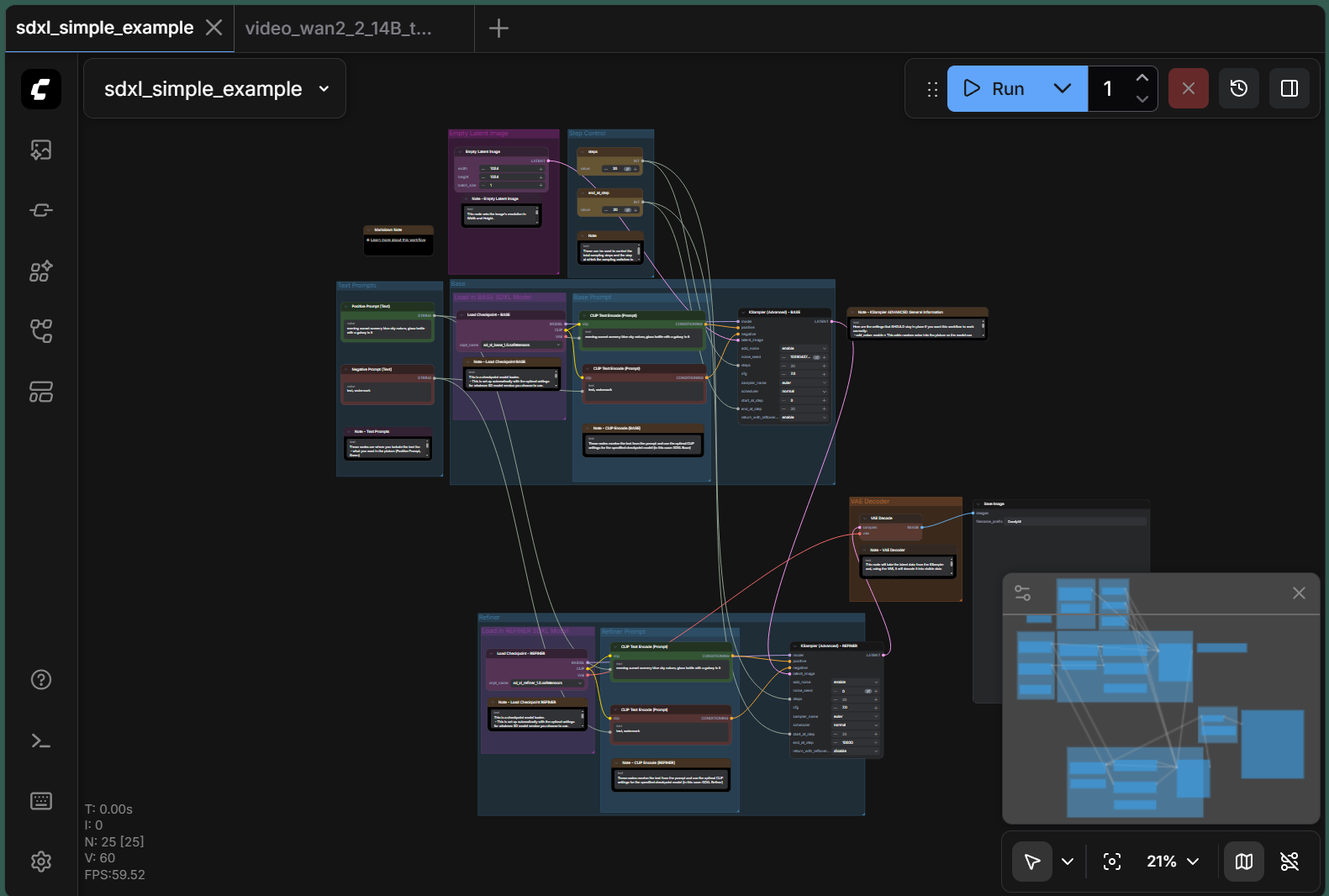 Figure 2: SDXL workflow showing the node-based pipeline with model loading, prompt encoding, sampling, and VAE decoding stages.
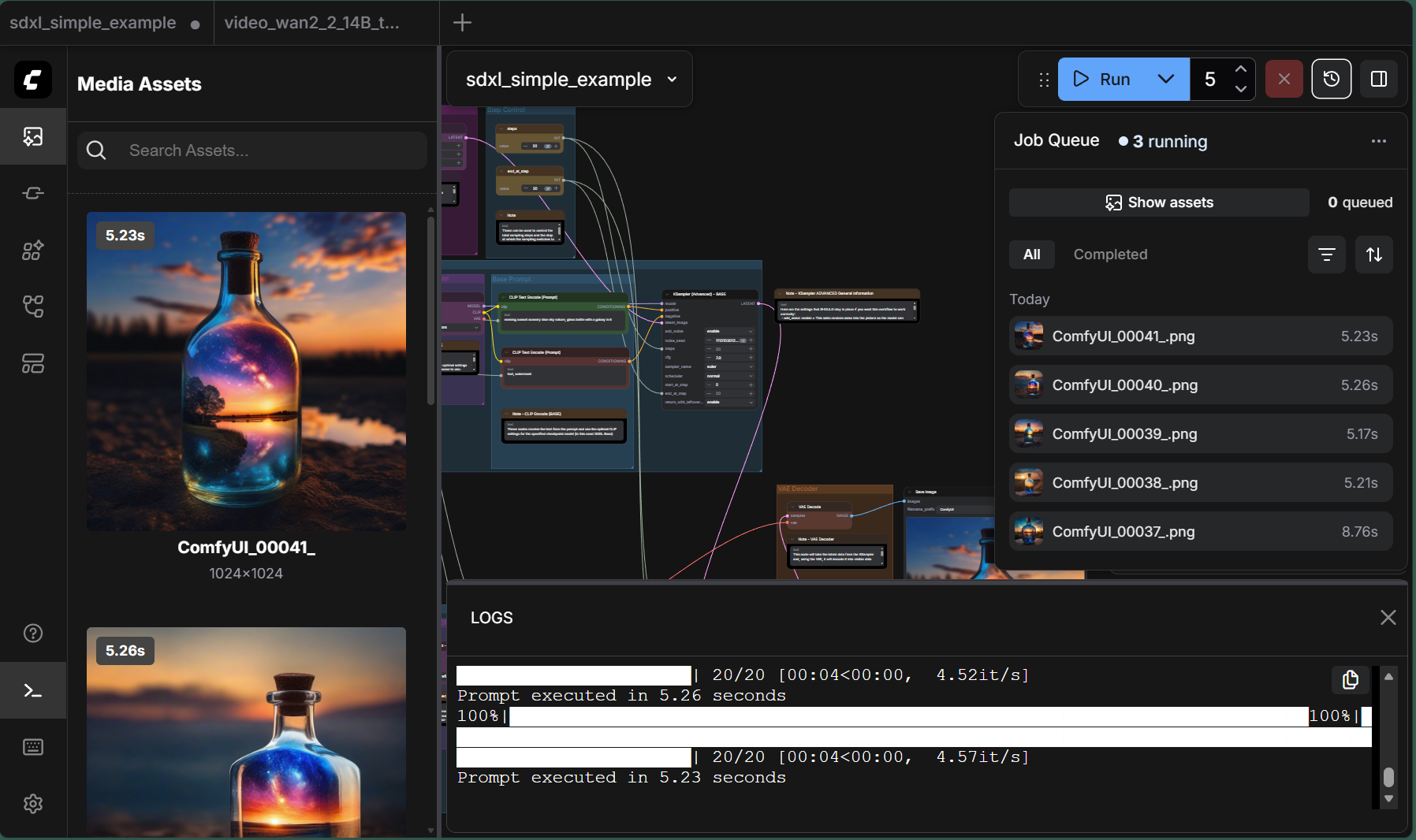 Figure 3: SDXL generation results showing high-quality 1024x1024 output. The logs panel displays real-time performance metrics: 20/20 steps completed at 4.52 it/s, with total execution time of 5.23 seconds.
WAN 2.2 Video Generation#
ComfyUI also supports video generation workflows using the WAN 2.2 model. Figure 4 shows the text-to-video pipeline, and Figure 5 shows the resulting output.
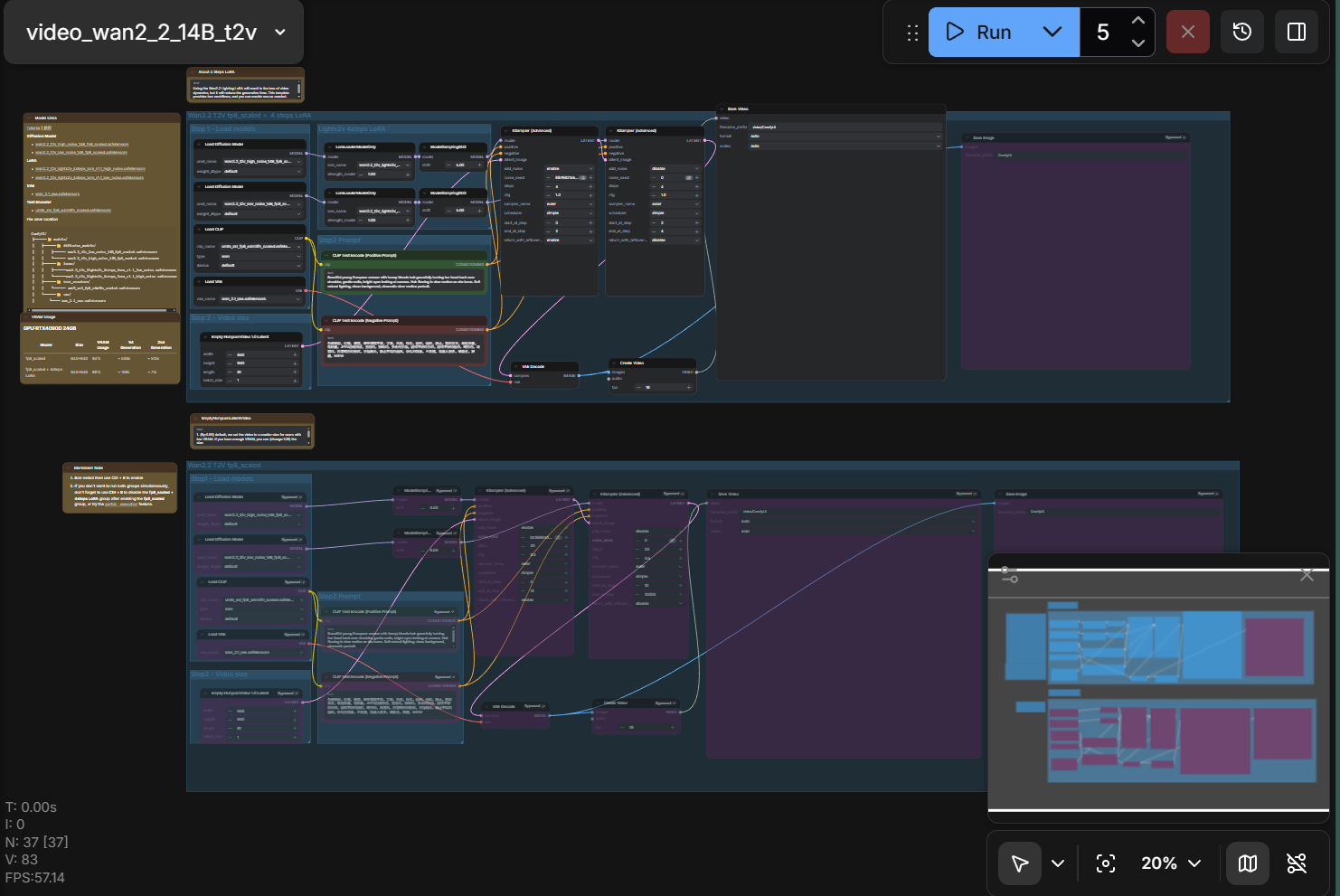 Figure 4: WAN 2.2 video generation workflow with text-to-video pipeline configuration.
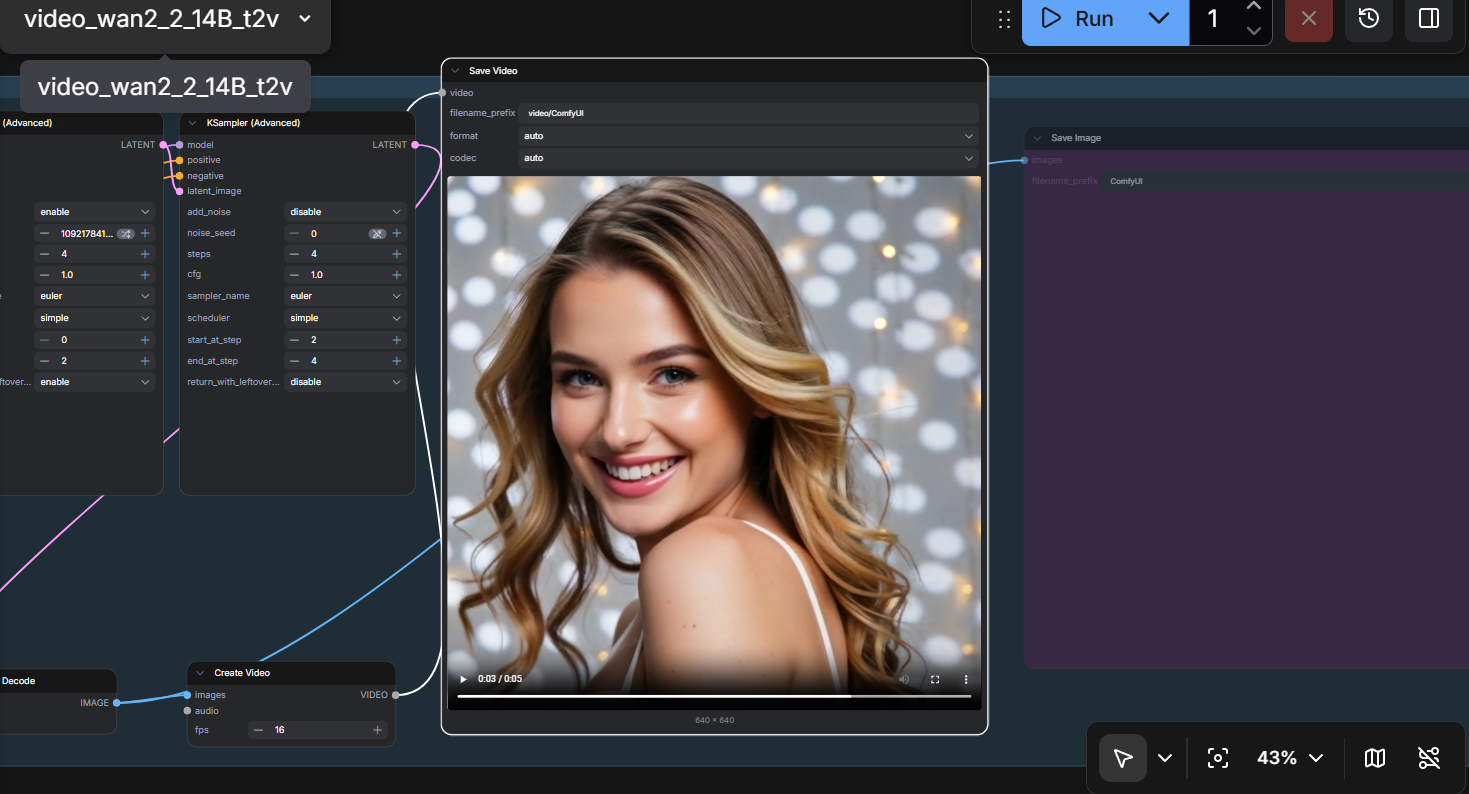 Figure 5: WAN 2.2 video generation result showing a 1024x1024 video output. The workflow successfully generates smooth video content from text prompts.
Troubleshooting Checklist#
If you encounter issues, verify the following:
ROCm installation:
rocm-smi --showproductnameConfirm your GPU is detected.
PyTorch ROCm support:
import torch
print(torch.cuda.is_available())  # Should be True
print(torch.version.hip)  # Should show HIP version
ComfyUI version:
cd ComfyUI
git log -1 --oneline
Ensure you’re on a recent commit.
Memory status:
rocm-smi --showmeminfo vram
Monitor VRAM usage during generation.
Additional Resources#
ComfyUI Official Documentation: https://docs.comfy.org/
ComfyUI GitHub Repository: comfyanonymous/ComfyUI
ROCm Documentation: https://rocm.docs.amd.com/
AMD Community Forums: https://community.amd.com/
Running ComfyUI on AMD Instinct: https://rocm.blogs.amd.com/software-tools-optimization/comfyui-on-amd/README.html
Running ComfyUI in Windows with ROCm on WSL: https://rocm.blogs.amd.com/software-tools-optimization/rocm-on-wsl/README.html
Summary#
ComfyUI on AMD Radeon RX 9000 series GPUs delivers a robust and performant experience for AI image and video generation. With ROCm 7.1 and the latest ComfyUI optimizations, many historical stability issues have been resolved. By following the configurations outlined in this guide, users can achieve reliable, high-quality generation results.
The key takeaways are:
Use the latest ComfyUI version - It includes automatic AMD optimizations
Reserve VRAM appropriately - Use
--reserve-vram 3for 16GB+ cardsFirst run will be slower - MIOpen compilation is a one-time process
VAE tiled mode is normal - It ensures completion under memory pressure
Ready to get started? Download ComfyUI from the official GitHub repository, follow the installation steps above, and start creating. If you encounter any issues not covered in this guide, visit the AMD Community Forums or open an issue on the ComfyUI GitHub repository.
Disclaimers#
Third-party content is licensed to you directly by the third party that owns the content and is not licensed to you by AMD. ALL LINKED THIRD-PARTY CONTENT IS PROVIDED “AS IS” WITHOUT A WARRANTY OF ANY KIND. USE OF SUCH THIRD-PARTY CONTENT IS DONE AT YOUR SOLE DISCRETION AND UNDER NO CIRCUMSTANCES WILL AMD BE LIABLE TO YOU FOR ANY THIRD-PARTY CONTENT. YOU ASSUME ALL RISK AND ARE SOLELY RESPONSIBLE FOR ANY DAMAGES THAT MAY ARISE FROM YOUR USE OF THIRD-PARTY CONTENT.