Efficient GPU Utilization With Workload Pre-Emption in AMD Resource Manager#

GPU capacity is sought after and in high demand. Production inference services, fine-tuning jobs, and developer workspaces like VS Code or JupyterLab all compete for the same resources. The challenge is not just about provisioning enough GPUs, it is keeping them utilized and making sure prioritized work can access capacity when it needs it. Training jobs can drop to near-zero utilization between compute phases; inference services can go quiet between traffic bursts; R&D or experimentation models and development workspaces might be left running unutilized or after hours. This would mean that workloads hold on to GPUs they are no longer using, while other work sits queued.
The AMD Resource Manager is a cluster management application, providing an environment for managing AI development teams’ work on AMD compute. It lets platform administrators create projects, set GPU and CPU quotas, and control access for AI teams working on AMD Instinct™ GPUs. AMD Resource Manager includes workload pre-emption, a project-level feature that addresses utilization of prioritized work directly. When enabled it monitors GPU utilization across every workload in a project, and when activity drops below a configured threshold for long enough, it terminates the idle workload and returns its GPUs to the pool, no changes needed from the teams running workloads.
By the end of this blog, you will understand how workload pre-emption works, how to enable and configure it for your projects, and how to choose the right policy for your workload types.
Prerequisites#
This guide uses AMD AI Workbench v1.1.9 and AMD Resource Manager v1.1.9. It was validated on a cluster powered by AMD Instinct™ MI300X GPUs with more than 1 TB of storage. Before you begin, ensure the following prerequisites are met:
Access to the following installed components:
AMD Resource Manager (Platform administrator role, only administrators can configure pre-emption settings)
AMD AI Workbench
Access to at least one project with GPU workloads. For setup assistance, see Manage Projects
What Is Workload Pre-emption?#
Workload pre-emption monitors the GPU utilization of every workload per project, where the pre-emption functionality is enabled. The AMD GPU operator continuously monitors per-GPU utilization metrics:
Threshold: the percentage of GPU compute capacity the workload is actively using
Idle timer: the duration during which the GPU compute capacity metric is calculated
When a workload’s activity drops below the administrator configured threshold and stays there for the configured idle timer duration AMD Resource Manager terminates that workload to make the GPUs available for other workloads. A threshold of 10%, for example, means a workload is considered idle if it is using less than 10% of the GPU compute it has been allocated.
How Idle GPU Reclamation Fits Alongside Quotas and Priority#
The AMD Resource Manager provides three different quota and priority features, which are used to handle priority, quotas and pre-emption and are targeting either project level (applies to all workloads in a project) or workload level (applies to the specific workload). The three features differ in the following way:
**Workload and project level settings:“”
Idle workload pre-emption (this article) applies to every GPU workload in the specific project. AMD Resource Manager watches each workload’s GPU activity, and if it stays below the configured threshold for the full idle timer, the workload is terminated.
Project level settings:
Quota-based pre-emption when a project has utilized resources beyond its allocated quota and an in-quota project needs capacity back, the over utilized workloads will be queued so the in-quota project can reclaim them.
Workload level settings:
Priority classes are set for a specific workload by the user. When the cluster is fully subscribed and a higher-priority workload needs GPUs, lower-priority running workloads are suspended so the prioritized workloads can run.
AMD Resource Manager Workload Pre-emption Configuration Options at a Glance#
Whether pre-emption triggers depends on the selected pre-emption policy, there are two different policies for the administrators to choose between:
Setting |
Description |
|---|---|
Enable idle workload pre-emption |
Master toggle. When off, all other settings are ignored. |
Pre-emption policy |
During GPU pressure: (Default option) AMD Resource Manager only terminates the workload when another workload in the cluster is specifically waiting for GPU resources. If there are no workloads that needs the GPUs (in the queue), the workload keeps running, despite being below threshold. |
GPU activity threshold |
The percentage of GPU compute capacity a workload must stay below to be considered idle. A threshold of 10% means a workload is flagged as idle when it is using less than 10% of the GPU compute it has been allocated, not 10% of the whole GPU card. |
Idle timer |
Number of minutes the workload must remain below the threshold before it gets terminated. Gives jobs time to checkpoint or finish a burst. |
Note
GPU activity threshold and idle timer settings are required when pre-emption is enabled.
Setting Up Your Project and Configuring Pre-emption#
Platform administrators can enable pre-emption when creating a new project. This is the most straightforward path when the project’s GPU workloads should be monitored for idleness from the start. Through the steps below, you create a new project with pre-emption settings for reclaiming idle workloads using the following settings: Always policy, 10% GPU activity threshold, and a 15 minute idle timer.
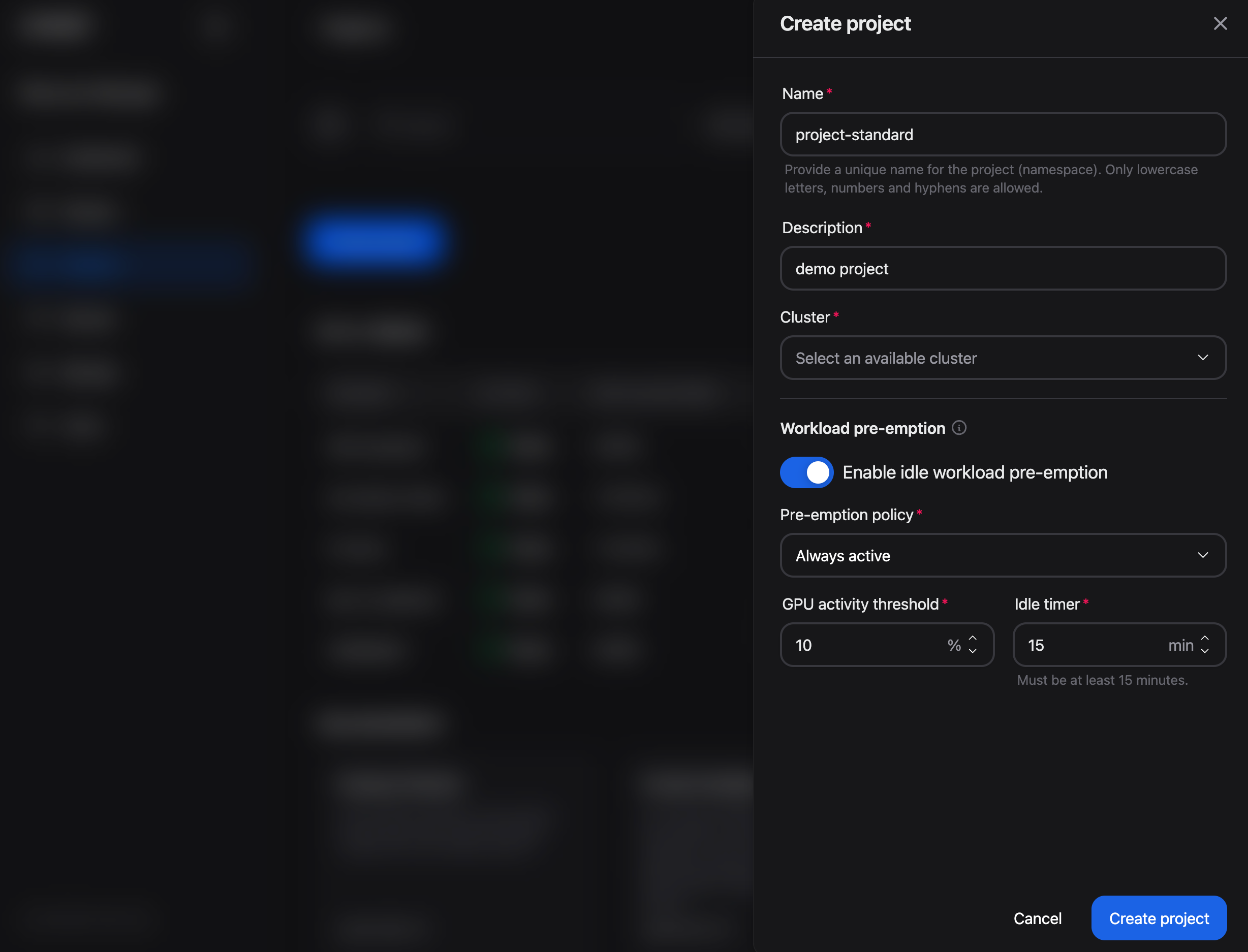
Figure 1: The Workload pre-emption section in the Create project panel.
Navigate to the Projects page and click Create project
Fill in the project Name (e.g., blog-demo), Description, and select the Cluster
In the Workload pre-emption section, toggle Enable idle workload pre-emption to enabled
Select a Pre-emption policy
During GPU pressure (default)
Always
Set GPU activity threshold to 10%, low enough to ignore brief typing and thinking, high enough to catch truly idle kernels
Set Idle timer to 15 minutes, a grace period that keeps a GPU from idling for more than 15 minutes
Click Create project
Navigate to the Users tab and add your users to the project (add at least yourself to be able to follow this blog) by click on Add member and selecting users
Click on Projects to get back to the Project page and confirm that your project is visible in the list of projects
The project is now created with pre-emption activated. Any GPU workload deployed into this project will be monitored from the start.
Configuring Pre-emption for an Existing Project#
Pre-emption can be enabled or adjusted at any time for a project that’s already running. Figure 2 below shows the Workload pre-emption section on the Details tab of Project settings, where you toggle the feature and update policy, threshold, and idle timer.
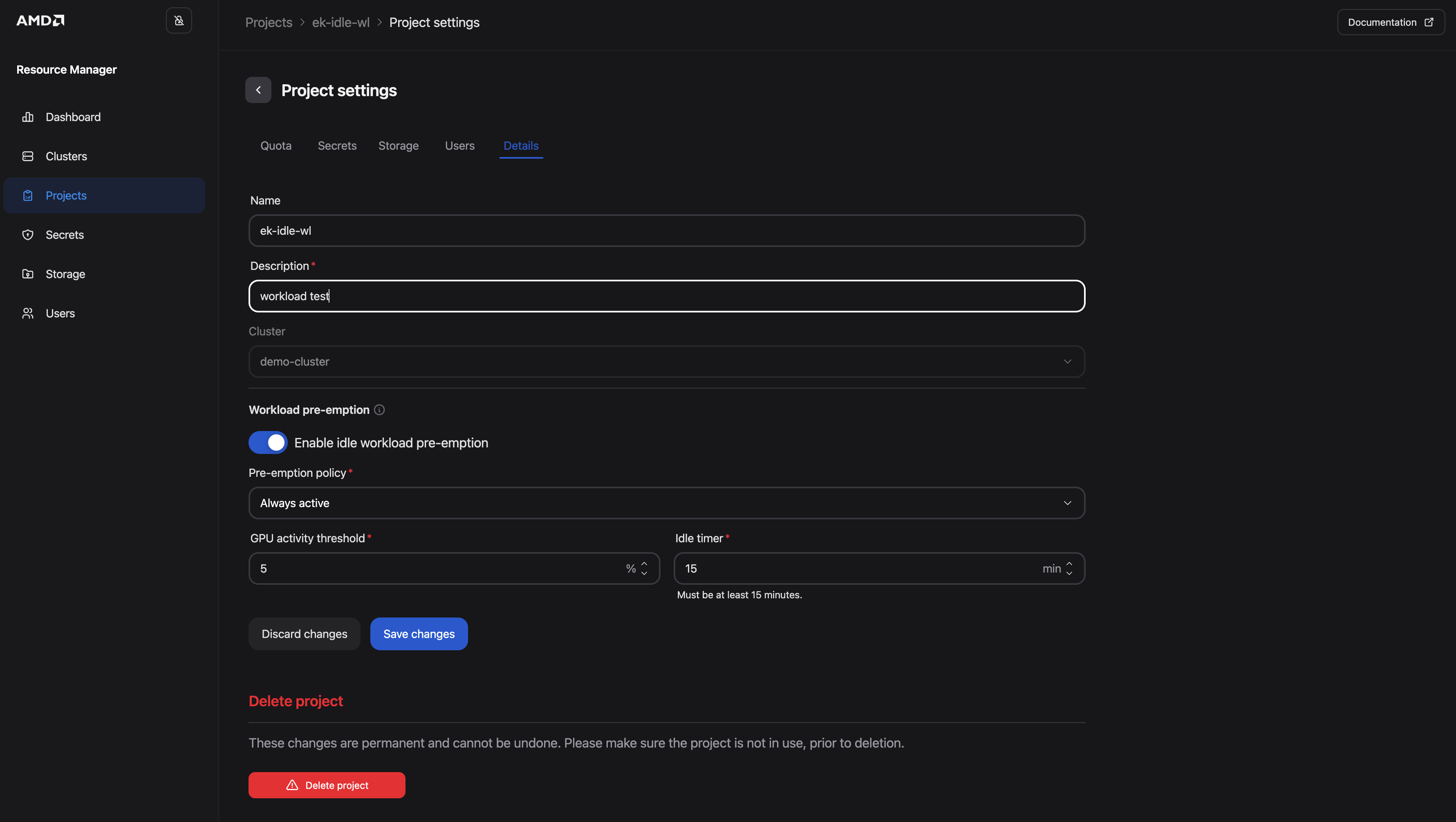
Figure 2: The Workload pre-emption section on the Details tab of Project settings.
Navigate to the Projects page
Select the project by clicking it, the Project page opens and you find the Actions drop-down button appearing in the top right corner
Open the Actions drop-down and choose Edit settings
Select the Details tab
In the Workload pre-emption section, toggle the feature on (or adjust existing settings)
Click Save changes
Changes take effect immediately. AMD Resource Manager starts monitoring GPU utilization against the new threshold and timer values.
To match the idle-workspace values used when setting up your project and configuring pre-emption, set Pre-emption policy to Always, GPU activity threshold to 10%, and Idle timer to 15 minutes before you save.
What Team Members See#
Team members assigned to a project can view the pre-emption policy (by following the same steps (1-4) as above) but cannot change it. This keeps the configuration under administrator control while giving teams visibility into how their workloads may be affected. As you can see in Figure 3 below, the same settings appear on the Details tab in read-only mode for team members.
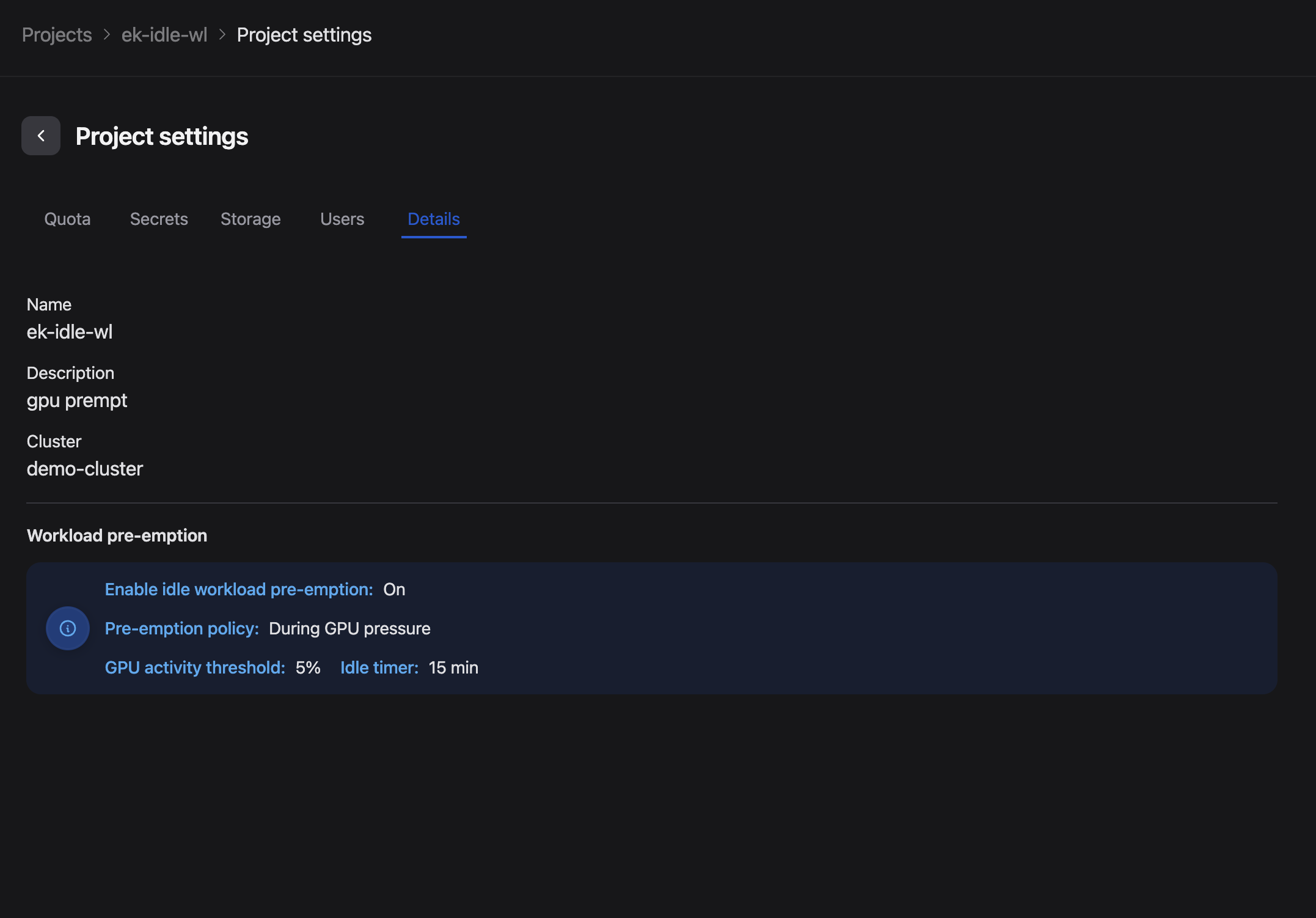
Figure 3: The read-only Workload pre-emption view visible to team members.
Reclaim an Idle R&D or Experimentation AIM in Action#
An example use case for idle pre-emption is an unused R&D or experimentation AMD Inference Microservice (AIM); a team member deploys an AIM to be used for R&D or experimentation from the Model catalog in AMD AI Workbench, gets pulled into a meeting or occupied with another task, leaving an idle workload holding on to GPU resources. Below we set up pre-emption for and verify it end-to-end in the UI.
1. Deploy an AIM From AMD AI Workbench#
Figure 4 below shows the AMD AI Workbench Models page, where you select an AIM from the AIM catalog and deploy it with a few clicks.
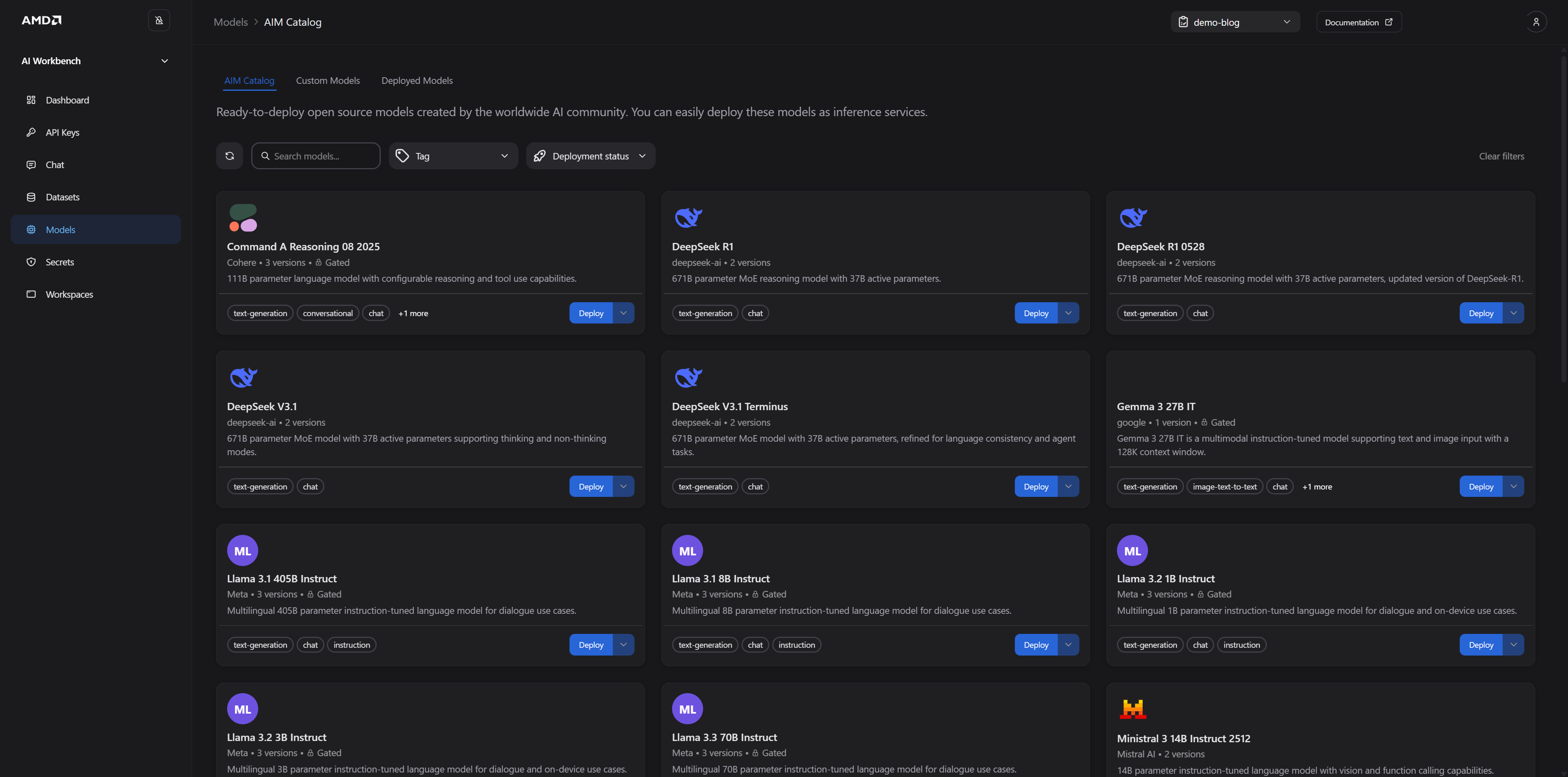
Figure 4: The AMD AI Workbench Models page. Displaying AIMs available for deployment with two clicks.
Switch to AMD AI Workbench in your browser and login
Navigate to the Models page
Verify that the AMD AI Workbench is set to the project where you enabled idle pre-emption (your current project is visible in the top banner next to “Documentation”)
Select a model, if you don’t have a Hugging Face token stored under Secrets pick one of the non-gated models e.g., GPT OSS 20B, and click Deploy
Leave the settings as per default and click Deploy
Wait for the model to go from pending into running state, this can be observed in the Dashboard page
Once deployed (running), navigate to the Chat page
Select the newly deployed model in the top right corner, send a chat to it and wait for the answer. E.g., “What is the capital of Finland?”
2. Let the Deployed Model Go Idle#
The model should now be active and its allocation genuinely exercised from the previous step. We’ll now stop and leave the model unused - the same thing a team member or developer does when they step away. AMD Resource Manager now starts the idle clock against the 10% threshold.
3. Observe Reclamation#
Wait out the Idle timer (15min), plus a short settle period for the GPU metrics to catch up
Return to AMD AI Workbench → Dashboard page, the previously deployed and running model should no longer be running
Open the Projects page in AMD Resource Manager, select the project, and review its workloads to confirm that the AIM was pre-empted and its GPU has returned to the pool
The team member can redeploy the model from AMD AI Workbench whenever its needed again.
The same pattern applies to all the AIMs, models and all the development workspaces JupyterLab, Visual Studio Code, ComfyUI, and MLflow. Enabling idle pre-emption once, at project level, is enough to reclaim idle GPUs across all of them without any change to how the teams work.
Summary#
In this blog, you explored how idle workload pre-emption in AMD Resource Manager helps you reclaim GPUs that workloads are no longer using.
You learned how the feature monitors per-workload GPU activity against an administrator-defined threshold and idle timer, and how it fits alongside quota-based pre-emption and priority classes when you need to balance utilization, fairness, and urgent work.
You compared the two pre-emption policies, During GPU pressure and Always, walked through enabling pre-emption on a new project (with an Always policy, 10% threshold, and 15-minute idle timer), updating settings on an existing project, and what team members see in read-only form and tested it in AMD AI Workbench.
You can put this into practice today: enable idle pre-emption on the projects where idle GPUs are most costly, tune policy and timer values to match how your teams work, and let AMD Resource Manager handle reclamation without asking practitioners to change how they deploy or use AMD AI Workbench.
Additional Resources#
If you are new to AMD Resource Manager, start with Getting Started with AMD Resource Manager for projects, quotas, and dashboards; pair it with Getting Started with AMD AI Workbench for deploying AIMs and workspaces.
If you want to learn more about AMD AI Workbench or AMD Solution Blueprints, see our other blogs:
Adapting AIM LLMs For Specific Use Cases Through Fine-Tuning in AMD AI Workbench
Leveraging AMD AI Workbench and Autoscaling to Scale LLM Inference for Optimal Resource Utilization
For full documentation, see:
GPU Pre-emption: complete configuration reference
Project Settings: quota-based pre-emption and other project settings
Workload Priority Classes: priority class pre-emption
Disclaimers#
Third-party content is licensed to you directly by the third party that owns the content and is not licensed to you by AMD. ALL LINKED THIRD-PARTY CONTENT IS PROVIDED “AS IS” WITHOUT A WARRANTY OF ANY KIND. USE OF SUCH THIRD-PARTY CONTENT IS DONE AT YOUR SOLE DISCRETION AND UNDER NO CIRCUMSTANCES WILL AMD BE LIABLE TO YOU FOR ANY THIRD-PARTY CONTENT. YOU ASSUME ALL RISK AND ARE SOLELY RESPONSIBLE FOR ANY DAMAGES THAT MAY ARISE FROM YOUR USE OF THIRD-PARTY CONTENT.